
To create a headphone mix on the Aviom
• On a track you want to hear in the headphones, go to “sends”, then select Output > Mono > then any output between 63-77. Now, click on the blue button with the output number that was just created, and select “pre-fader”. Finally, option-click on the small circle to set the level to “0dB” (which means full level).
• Connect headphones to an Aviom system.
NOTE: Logic Outputs 63-77 correspond to Input 1-15 on the Aviom (e.g., Logic Out 63 is channel 1 on Aviom, Logic Out 64 is channel 2 on Aviom, etc., see below)
• Select the channel on the Aviom you want to listen to by pressing the corresponding white square button at the bottom.
• Make sure "Channel Volume" is selected, then, using the main round knob at the center, adjust the volume until you hear what's coming from Logic. Make also sure that the "Master Volume" is turned up (avoid going past 3 o'clock to reduce headphone hiss).
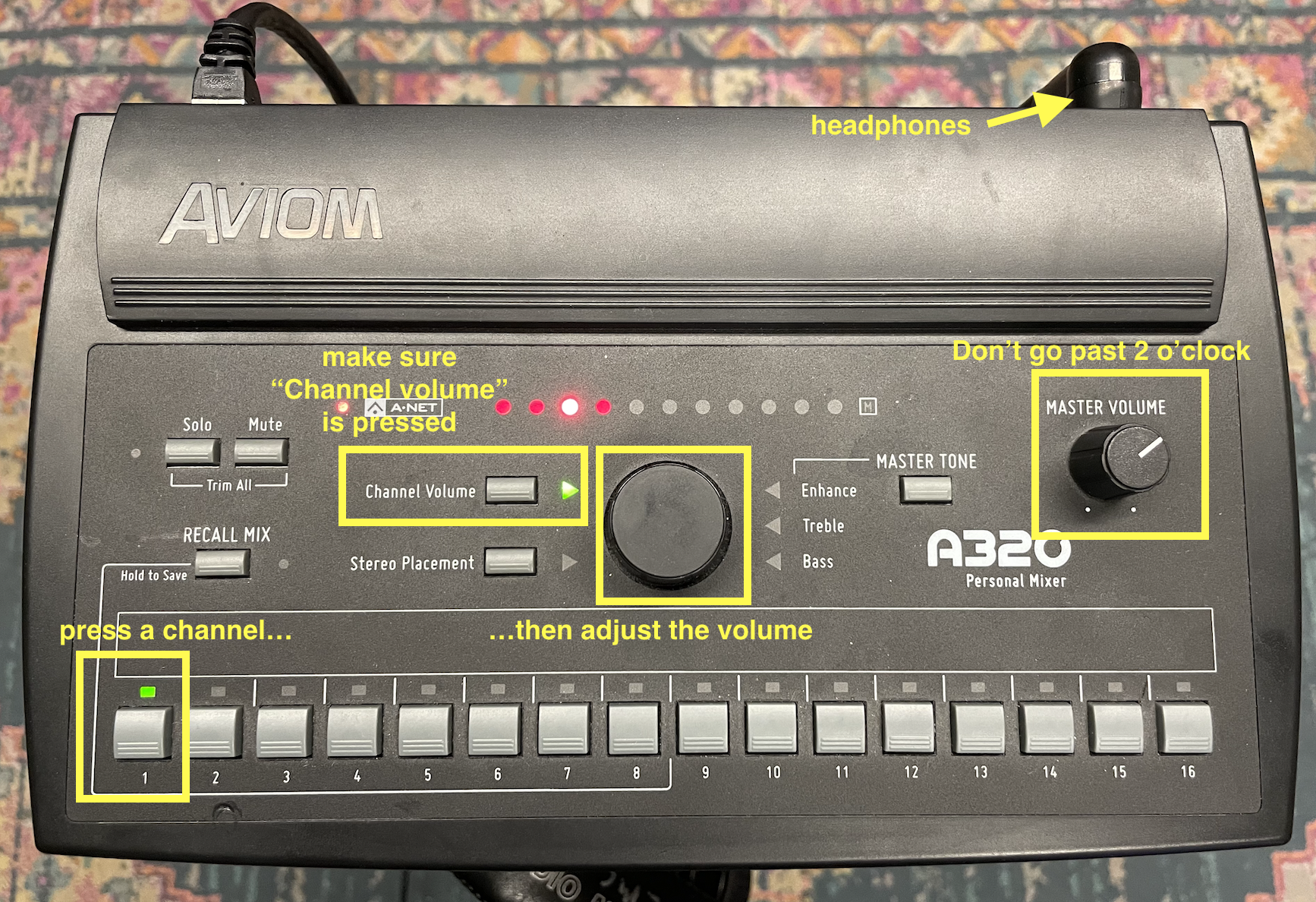
• Repeat the above steps for each track in Logic you want to have available in your headphone mix. Remember to select a new output number when creating the send.
Aviom Channels Assignments:
MONO
• Logic Output 63 > Aviom Ch 1
• Logic Output 64 > Aviom Ch 2
• Logic Output 65 > Aviom Ch 3
• Logic Output 66 > Aviom Ch 4
• Logic Output 67 > Aviom Ch 5
• Logic Output 68 > Aviom Ch 6
• Logic Output 69 > Aviom Ch 7
• Logic Output 70 > Aviom Ch 8
• Logic Output 77 > Aviom Ch 15
STEREO
• Logic Output 71-72 > Aviom Ch 9-10
• Logic Output 73-74 > Aviom Ch 11-12
• Logic Output 75-76 > Aviom Ch 13-14
***TALK BACK IS DIRECTLY CONNECTED TO AVIOM 16*** (does NOT need to be assigned in Logic or patched on the patchbay)